 By
By 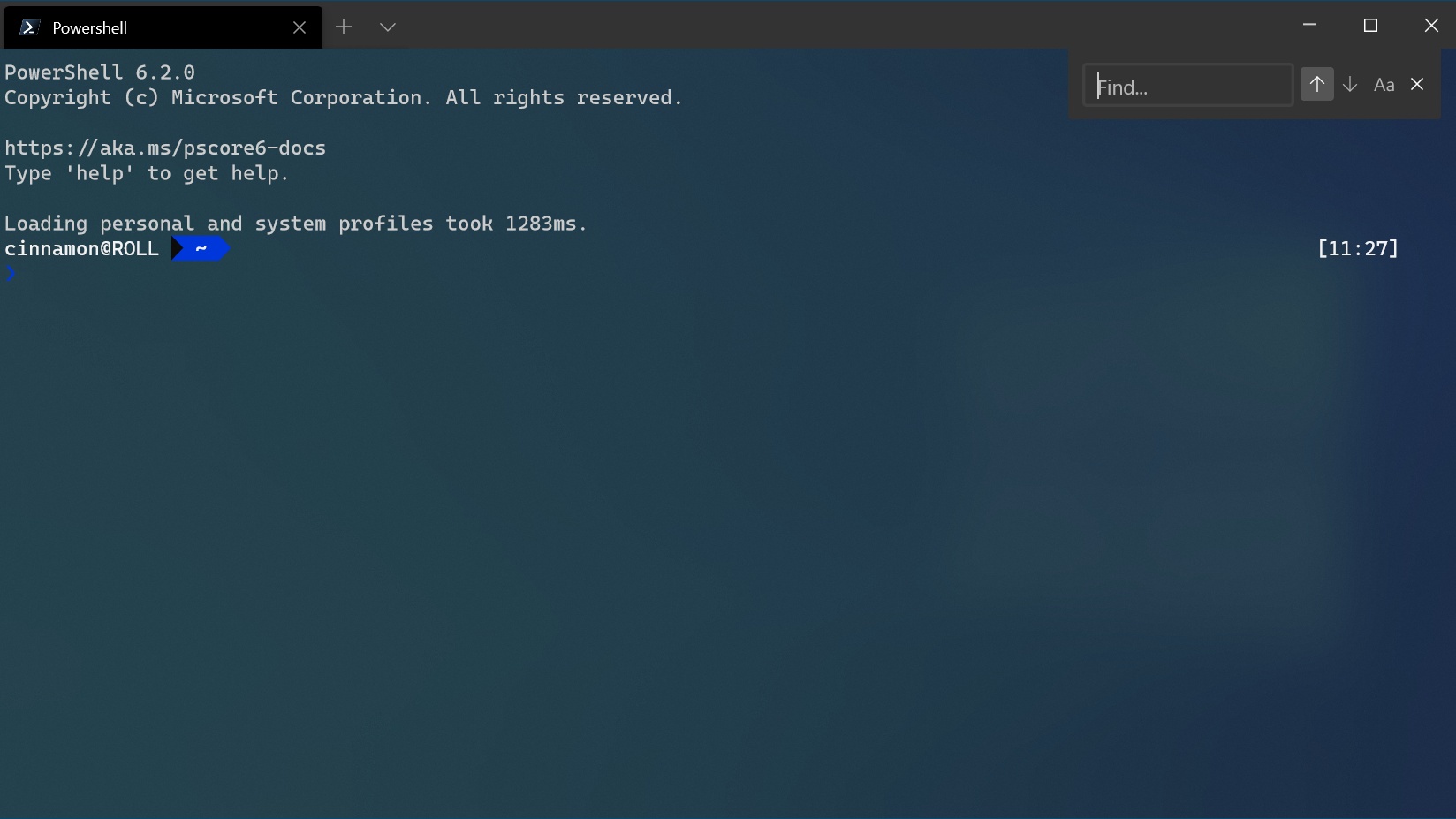
Setting up a development environment is one of those things that should take an afternoon but often takes a week. Bad tutorials, outdated instructions, tools that conflict with each other, and setup guides written for fast fibre connections that assume you can casually download a 4GB installer are all part of the experience.
This guide is written specifically for developers in Kenya. That means it accounts for the hardware most Kenyan developers actually have, the connectivity constraints of working on Safaricom, Airtel, or a shared office connection, and the stack that is most relevant to building web products for the Kenyan and broader African market.
By the end of this guide you will have a working environment for fullstack web development, a terminal you can actually use, Git configured properly, Node.js 24 LTS, a package manager, VS Code with the right extensions, and a local database. We will cover all three major operating systems: Windows, Linux, and macOS.
Before You Start: A Note on Bandwidth
Several tools in this guide require downloads. The good news is that most of them are small. The things to be aware of:
Download once, install everywhere. If you are sharing a hotspot with other developers, coordinate who downloads what. Most installers can be transferred over Bluetooth or a USB drive once downloaded.
Use the offline installer for VS Code. Microsoft publishes a separate offline installer that bundles everything. It is slightly larger to download but avoids VS Code trying to pull extensions over a slow connection during setup.
nvm and fnm are bandwidth-friendly. The Node version managers in this guide download only what you request and cache it locally. You will not be re-downloading Node every time you open a terminal.
Docker is the exception. We will mention Docker but not make it a core requirement of this guide, because pulling Docker images on a constrained connection is painful. If your work requires Docker specifically, do that setup on good Wi-Fi and treat it separately.
Part 1: Windows Setup (WSL2)
Windows is the most common OS among Kenyan developers and students, largely because of hardware availability and affordability. The bad news historically was that Windows was a frustrating platform for web development, tools behaved differently, paths were inconsistent, and the terminal was genuinely bad. WSL2 (Windows Subsystem for Linux 2 ) fixed this. It runs a real Linux kernel inside Windows with near-native performance, and it is now the recommended way to do web development on Windows.
Step 1: Enable WSL2
Open PowerShell as Administrator (right-click the Start menu, select "Windows PowerShell (Admin)" or "Terminal (Admin)") and run:
This installs WSL2 and Ubuntu by default. Your machine will restart. After restarting, Ubuntu will open automatically and ask you to create a username and password. Use a simple, memorable password, you will type it often when running commands with `sudo`.
If you are on Windows 10 version 2004 or later, or any version of Windows 11, this command handles everything. If it fails, check that virtualisation is enabled in your BIOS, on most Kenyan-market laptops (Lenovo ThinkPads, HP EliteBooks, Dell Latitudes) this setting is under "Intel Virtualisation Technology" or "AMD-V" in the BIOS security settings.
Step 2: Update Ubuntu
Once Ubuntu is running, update the package list and upgrade any outdated packages:
This may take a few minutes depending on your connection. It is worth doing once, future updates are much smaller.
Step 3: Install Essential Build Tools
Some Node packages compile native code during installation and need build tools to do it:
Step 4: Install Node.js via fnm
Do not install Node.js directly from `apt`, the version in Ubuntu's package repositories is usually outdated. Instead, use fnm (Fast Node Manager), which is lightweight, fast, and lets you switch between Node versions easily:
After installation, close and reopen your terminal, then install Node.js 24 LTS:
Verify the installation:
Step 5: Install Windows Terminal and configure it
Windows Terminal is Microsoft's modern terminal app and it is significantly better than the default. Install it from the Microsoft Store (search "Windows Terminal"), it is free and about 50MB.
Once installed, set your default profile to Ubuntu so WSL2 opens automatically when you launch Terminal. Go to Settings → Startup → Default Profile → Ubuntu.
Step 6: Configure Git
Generate an SSH key for GitHub (replace the email with yours):
Press Enter to accept the default file location. When asked for a passphrase, you can leave it empty for convenience or set one for security. Then display the public key:
Copy the output and add it to GitHub under Settings → SSH and GPG keys → New SSH key. Test the connection:
You should see a message saying you have successfully authenticated.
Part 2: Linux Setup (Ubuntu / Debian)
If you are running Ubuntu, Debian, or a derivative (Linux Mint, Pop!_OS, Zorin OS), the setup is similar to the WSL2 instructions above but without the WSL2 installation step.
Step 1: Update and install essentials
Step 2: Install Node.js via fnm
Restart your terminal, then:
Step 3: Add fnm to your shell config
For the version switching to persist across terminal sessions, add fnm to your shell configuration file. If you are using bash (the default on most Ubuntu installs):
If you are using zsh:
Step 4: Configure Git
Same as the Windows section, run the git config commands and set up your SSH key for GitHub.
A note on Fedora and Arch
If you are on Fedora, replace apt with dnf. If you are on Arch or Manjaro, use pacman -S base-devel curl git for the essentials, everything else is the same.
Part 3: macOS Setup
macOS is a Unix-based system, which makes it a comfortable environment for web development out of the box. The main setup steps are installing Homebrew and using it to manage everything else.
Step 1: Install Xcode Command Line Tools
Open Terminal (Applications → Utilities → Terminal) and run:
A dialog will appear asking you to install the tools. Click Install. This takes a few minutes and provides Git, compilers, and other essentials.
Step 2: Install Homebrew
Homebrew is the package manager for macOS and the fastest way to install development tools:
Follow the prompts. After installation, Homebrew will tell you to run a couple of commands to add it to your PATH, do that before continuing.
Step 3: Install Node.js via fnm
Add fnm to your shell. If you are using zsh (the default on modern macOS):
Then install Node 24 LTS:
Step 4: Configure Git
macOS ships with Git but the Homebrew version is more current:
Then configure it:
Set up your SSH key the same way as the Linux section above.
Part 4: VS Code (All Platforms)
Visual Studio Code is the editor of choice for the vast majority of web developers globally, and for good reason, it is fast, free, and has an exceptional extension ecosystem. Download it from code.visualstudio.com. On Windows, use the System Installer (not the User Installer) for better integration.
Critical step for Windows/WSL2 users: After installing VS Code on Windows, install the WSL extension. Search for "WSL" in the Extensions panel (Ctrl+Shift+X) and install the one published by Microsoft. This lets VS Code run directly inside your WSL2 environment rather than on Windows, which means all your Linux tools work seamlessly. After installing the extension, open a WSL2 terminal and type code . to open VS Code connected to your Linux environment.
Essential Extensions
Install these from the Extensions panel:
ESLint — catches JavaScript and TypeScript errors as you type. Publisher: Microsoft.
Prettier — automatic code formatting. Publisher: Prettier. Once installed, add this to your VS Code settings (Ctrl+Shift+P → "Open User Settings JSON"):
GitLens — shows who changed what and when, inline in your code. Publisher: GitKraken. Free tier is sufficient for most developers.
Thunder Client — test API endpoints directly inside VS Code without needing a separate tool. Publisher: Thunder Client. A lightweight alternative to Postman that does not require an account.
Tailwind CSS IntelliSense — if you are using Tailwind, this extension gives you autocomplete for class names and shows the actual CSS on hover. Publisher: Tailwind Labs.
Prisma — syntax highlighting and autocomplete for Prisma schema files if you are using Prisma as your ORM. Publisher: Prisma.
Part 5: Package Manager (pnpm)
npm ships with Node and works fine, but pnpm is significantly faster and uses far less disk space by storing packages in a shared content-addressable store rather than duplicating them in every project's node_modules folder. On a laptop with a small SSD, a common constraint in Kenya's refurbished laptop market, this matters.
Install pnpm globally via npm:
From this point forward you can use pnpm install instead of npm install, pnpm add instead of npm install <package>, and pnpm run instead of npm run. Your existing npm projects work with pnpm without any changes to package.json.
Part 6: Local Database
Most fullstack applications need a database. For local development, the two most common options are PostgreSQL and SQLite.
SQLite requires no installation and no running server, it is a single file on your disk. It is perfect for projects in early development or solo projects where simplicity matters. Prisma, Drizzle, and most ORMs support it out of the box.
PostgreSQL is more representative of what you will use in production and supports features SQLite does not — full-text search, JSON columns, concurrent connections. Install it based on your OS:
Ubuntu / WSL2:
Create a user and database:
Inside the psql prompt:
macOS:
Then create your user and database with the same psql commands above.
Windows/WSL2: Use the Ubuntu instructions above, PostgreSQL running inside WSL2 is accessible from your Windows host and works seamlessly with VS Code's WSL extension.
Part 7: Your First Project — Verify Everything Works
Create a simple Next.js app to confirm your entire setup is functional:
Open your browser and navigate to http://localhost:3000. If you see the Next.js welcome page, your environment is working correctly.
For WSL2 users: open http://localhost:3000 in your Windows browser. WSL2 automatically forwards ports from Linux to Windows.
Staying Productive on Kenyan Internet
A few habits that make development significantly less frustrating on variable connectivity:
Cache aggressively with pnpm. pnpm's shared store means you only download a package version once. If you install the same dependency in ten projects, it downloads once and links the rest. Over time this saves significant bandwidth.
Use .npmrc to set a faster registry mirror if needed. If npm downloads are consistently slow, you can try the Alibaba registry mirror which sometimes performs better in East Africa: create a .npmrc file in your home directory with registry=https://registry.npmmirror.com. Switch back to the official registry if you encounter issues with specific packages.
Offline-first development habits. Commit regularly so your work is not dependent on a live connection to a service. Use local databases during development rather than connecting to remote databases over mobile data. Configure your applications to work offline where possible.
Use Git over SSH, not HTTPS. SSH connections are more resilient to packet loss than HTTPS for Git operations. The SSH key setup in this guide ensures you are already using this approach.
What Next?
This guide gets you to a working baseline. The natural next steps depend on what you are building:
If you are building APIs and backend services, look into setting up Prisma with your PostgreSQL database, and learn how to structure a Node.js project with TypeScript.
If you are building fullstack applications with React, the Next.js project you created above is your starting point. The Next.js documentation is excellent and the App Router introduced in recent versions is the current standard approach.
If you want to deploy without infrastructure overhead, Cloudflare Workers with vinext, which we covered in a recent piece, gives you a deployment path that is both affordable and globally distributed from a single command.
If you are building M-Pesa integrations, Safaricom's Daraja API documentation is
the starting point, and there are several well-maintained Node.js SDKs on GitHub that abstract the most repetitive parts of the integration.
Something in this guide that did not work on your setup? Drop a comment below or reach us at [email protected] with your OS version and the error message. We update our guides when setups change.
Comments